

Add a model
- Open Settings → Model Provider in your workspace.
- Find OpenAI-API-compatible. If necessary, install it through Dify’s official plugin marketplace.
- Click Add Model and choose LLM.
- Enter an APIONE model ID supporting Chat Completions.
- Enter the APIONE key and set API Endpoint / Base URL to https://api.apione.ai/v1.
- Set context and output limits according to the model, then save.
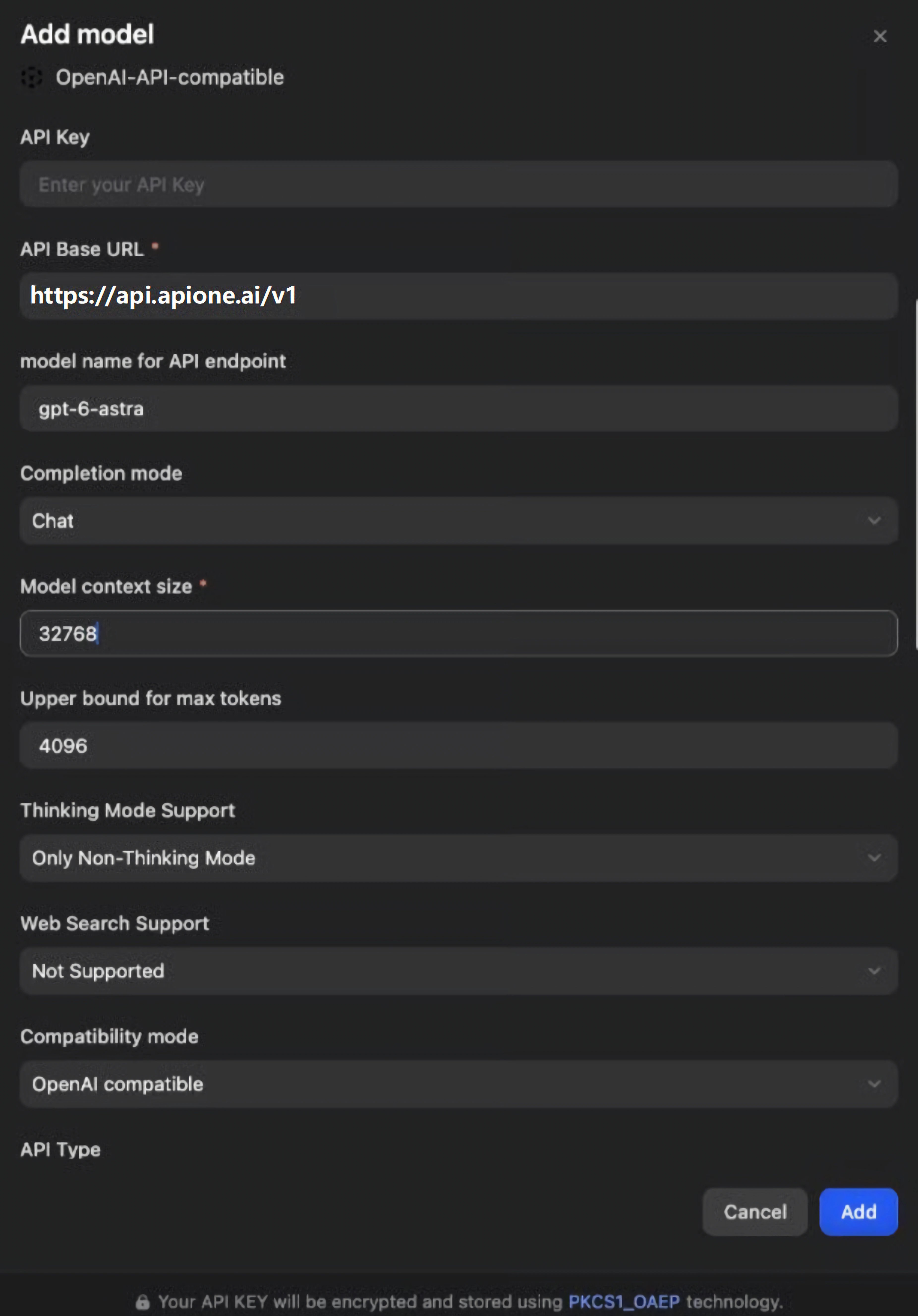
Add an OpenAI-compatible APIONE model in Dify; use the actual model ID and limits.
Verify an application
Create a Chatbot or open an LLM workflow node and select the new model. Run a minimal text-only flow before adding knowledge bases, tools, or multimodal input.Common problems
- Validation fails on save: check outbound access from the Dify backend or plugin runtime, the key, and the model ID.
- An app still uses the old model: select the model again in the LLM node and save the app.
- Knowledge retrieval fails: embeddings, reranking, and chat are separate capabilities requiring separate configuration.
- Plugin or self-hosted differences: use the field definitions for your Dify and provider-plugin versions.
Integration directory · Choose a model · Troubleshooting