

Prepare
Install Cherry Studio and create a key on the APIONE API Keys page. Start with a text model that supports Chat Completions.Create the connection
- Open Settings → Model Provider and click Add.
- Set the name to APIONE and the type to OpenAI.
- Enter your APIONE key. Set API Host to https://api.apione.ai/v1/.
- Save, open Manager, refresh the model list, and select the models you need.
- Return to chat, choose an APIONE model, and send a simple question.
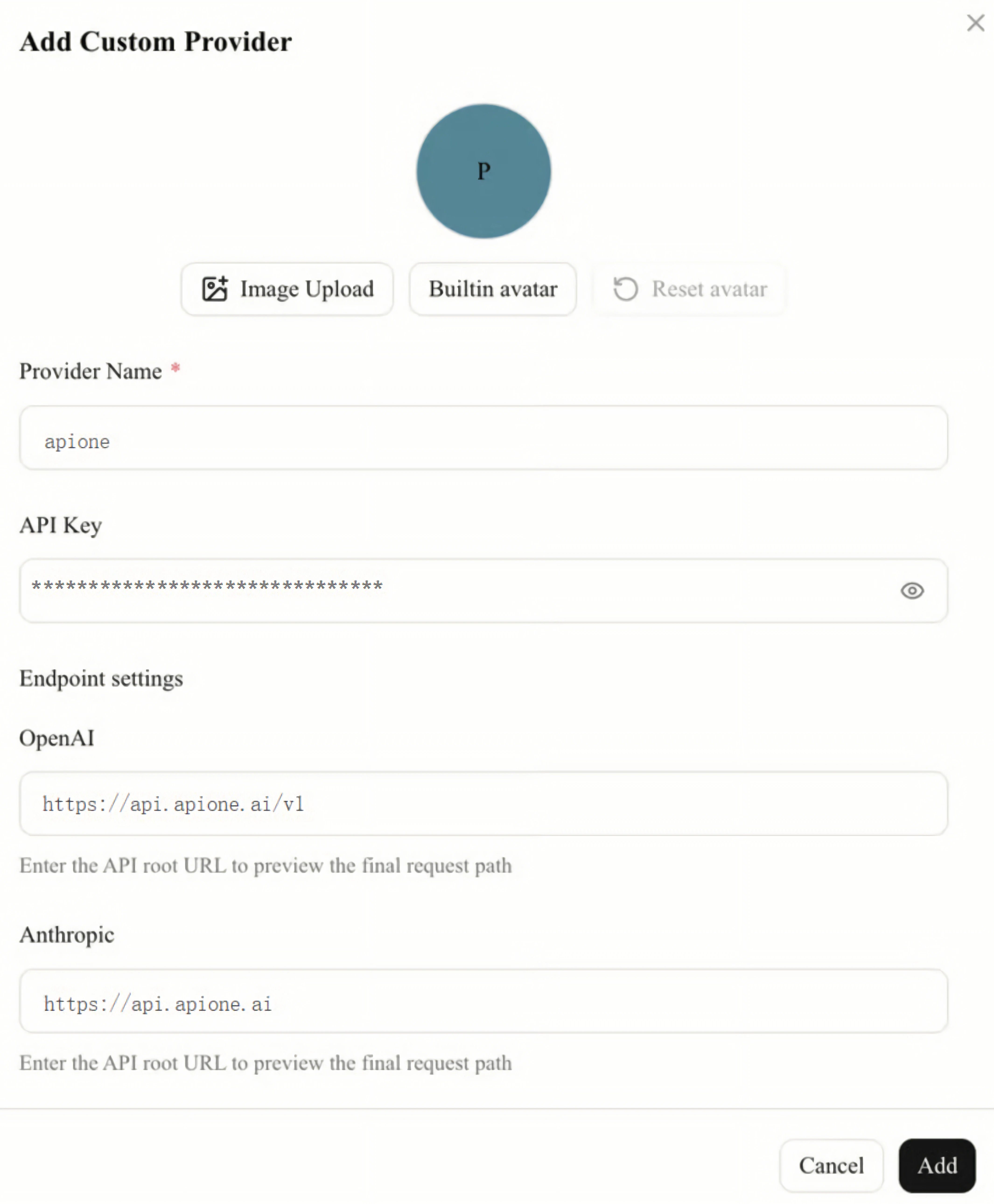
Add an APIONE provider in Cherry Studio and use the address for your selected protocol.
URL and model
Different protocols use the corresponding base address. OpenAI-compatible requests should ultimately reachhttps://api.apione.ai/v1/chat/completions; Anthropic requests should ultimately reach https://api.apione.ai/v1/messages. Check the path in the client address preview.
Use the Anthropic protocol
- Add an APIONE provider under Settings → Model Provider and choose Anthropic.
- Enter the APIONE key and use
https://api.apione.aias the API address. - Confirm that the request preview is
https://api.apione.ai/v1/messages, then enable the provider.
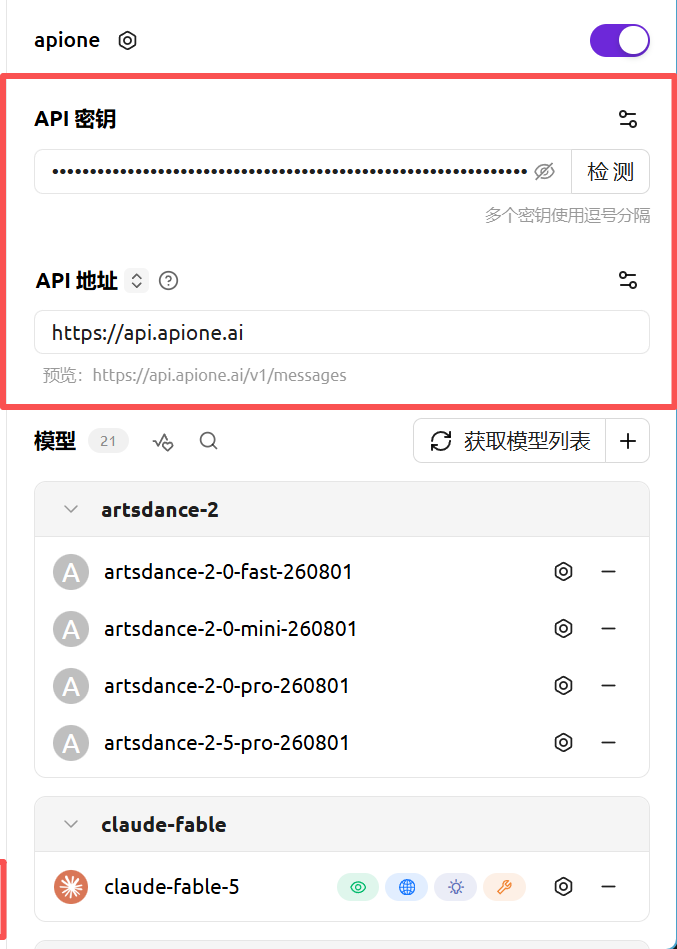
APIONE provider key and address configuration; the Anthropic address preview shows /v1/messages.
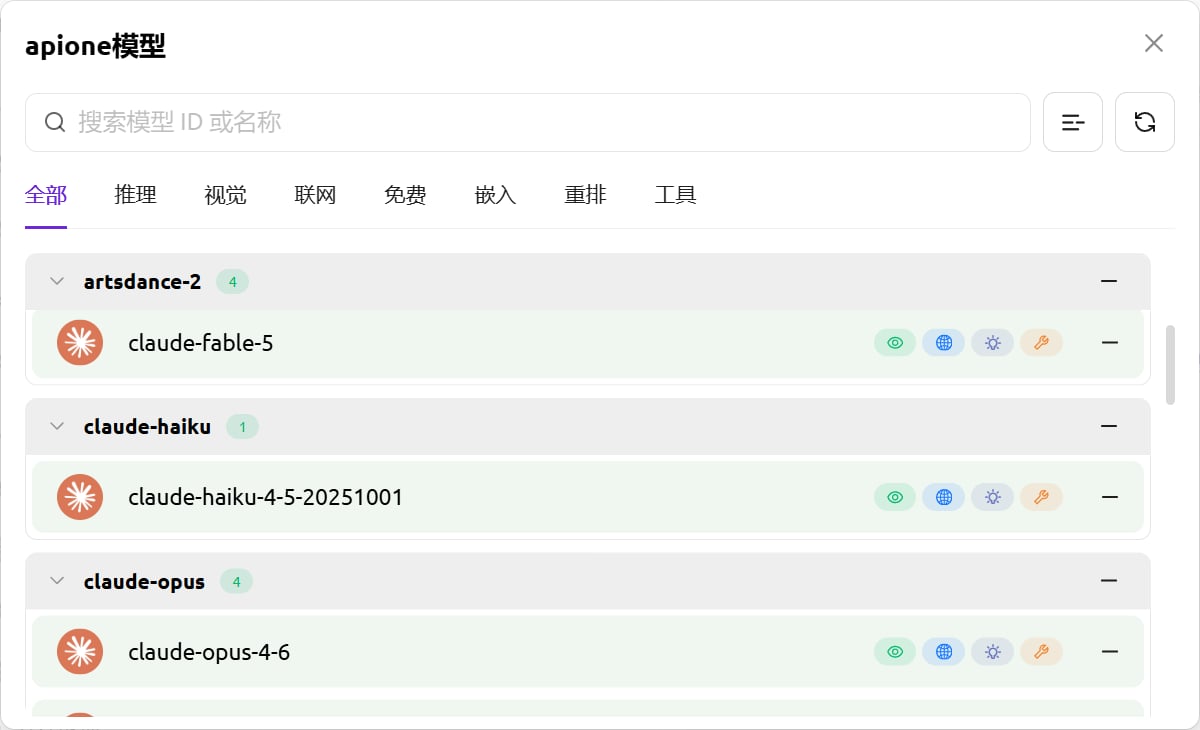
After fetching the model list, search for and select APIONE models.
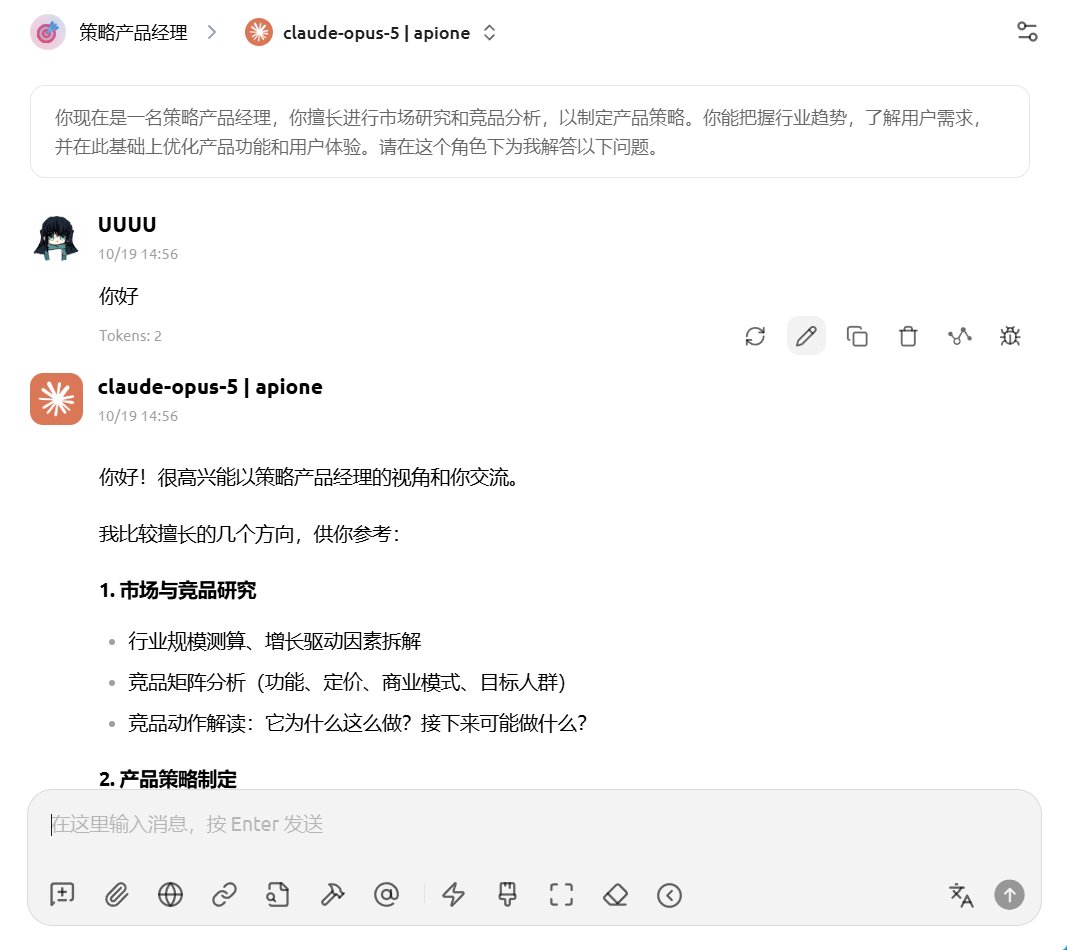
Select an APIONE model in an assistant conversation and view the reply.
Verify before enabling features
Verify plain text before testing images, attachments, and tools. A listed model does not necessarily support every input type.- Authentication fails: check whitespace, key status, expiration, and model permissions.
- Model not found: use the actual model ID in the
modelparameter, not its display name. A request ID identifies one API call and does not select a model. - Connection test passes but chat fails: confirm the assistant uses APIONE and disable unsupported optional parameters.
Integration directory · Choose a model · Troubleshooting