

Set the key
After installing Codex CLI, set the key in the terminal used to launch it:$env:APIONE_API_KEY="YOUR_APIONE_KEY". Do not commit real credentials.
Add a custom provider
Merge the following into the user-level~/.codex/config.toml, retaining other settings. Replace the model placeholder:
One-click setup from APIONE desktop
In APIONE desktop, choose the tool, pricing group, and model. Review the configuration file and Responses URL in Confirm changes, then apply the setup. Retain the generated local model catalog together with its configuration. Back up existing settings before switching between manual and one-click setup; use one credential source for the selected provider.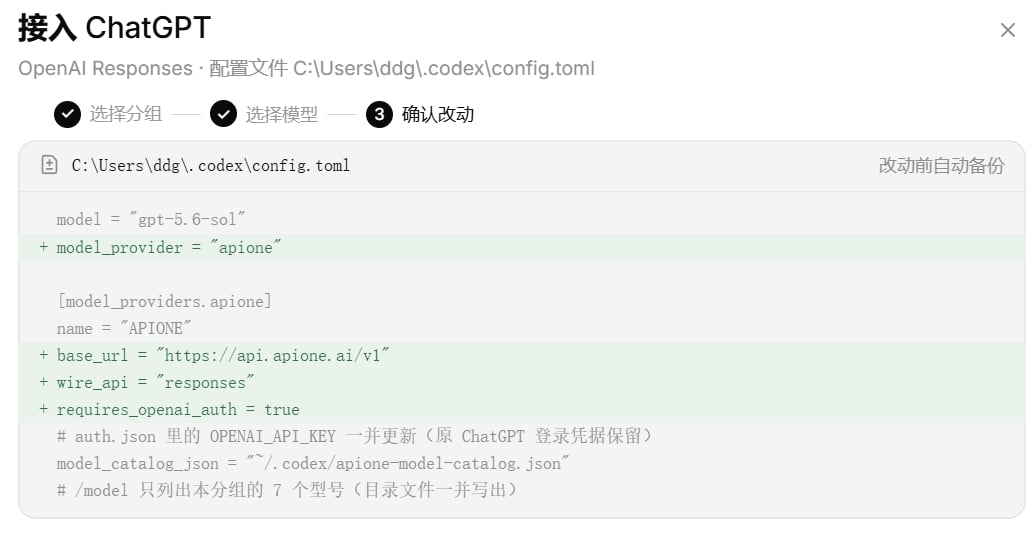
Review the Codex configuration changes in APIONE desktop.
Launch and verify
Open a test project in the same terminal and runcodex. Ask it to explain the directory structure. Confirm APIONE request activity before testing tools. Basic text generation does not establish support for remote compaction, web search, or other extended capabilities.
The desktop app should use the same user’s configuration. Fully quit and relaunch after changes. An app launched from a desktop icon may not inherit shell variables. If APIONE_API_KEY is unavailable, use a credential or launch-environment method supported by that desktop version.
Troubleshoot
- 401: confirm the running process can access a valid key.
- 404 or model errors: check the model ID and Responses access.
- 400: check tool, reasoning, and optional parameter support.
- Old provider still used: inspect project settings or launch arguments overriding user settings.
Integration directory · Choose a model · Troubleshooting