

Install and prepare
Download the Windows, macOS, or Linux installer from CC-Switch Releases. On macOS, you can also run:
Select Codex in CC Switch and click Add Provider.
Add a provider
- Open CC-Switch and select the target tool at the top.
- Click Add Provider, choose a custom configuration, and name it APIONE.
- Enter your APIONE API Key and the appropriate address below.
- Set the model and save. For Codex, use Select models or Add manually to maintain the model list, then restart Codex if prompted.
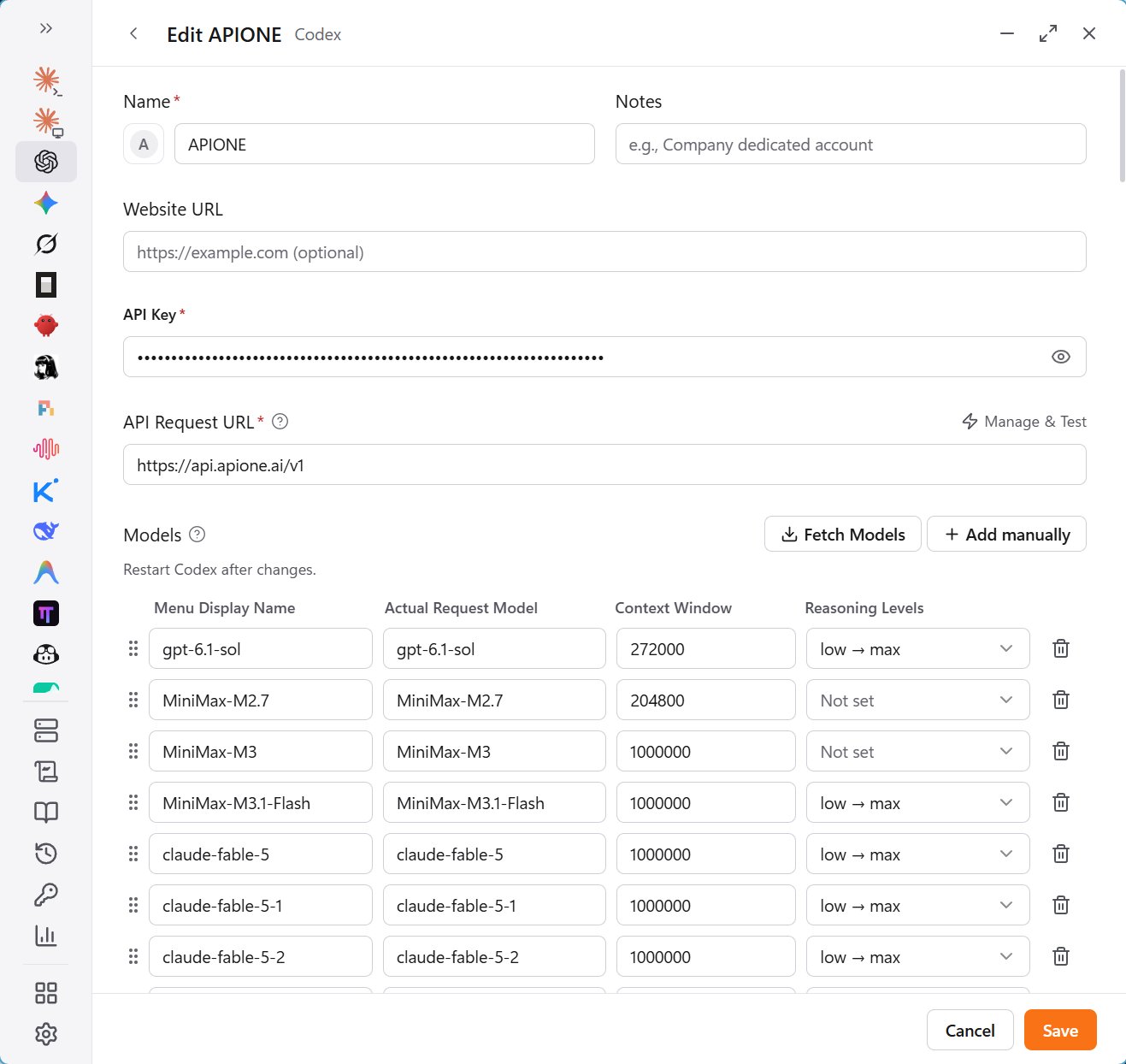
APIONE provider settings for Codex using the Responses protocol.
Codex routing mode
After saving the provider, select Routing on the Codex page and click Start routing. Choose APIONE as the destination and confirm. Requests pass through the local CC Switch process, so keep CC Switch running while routing is active.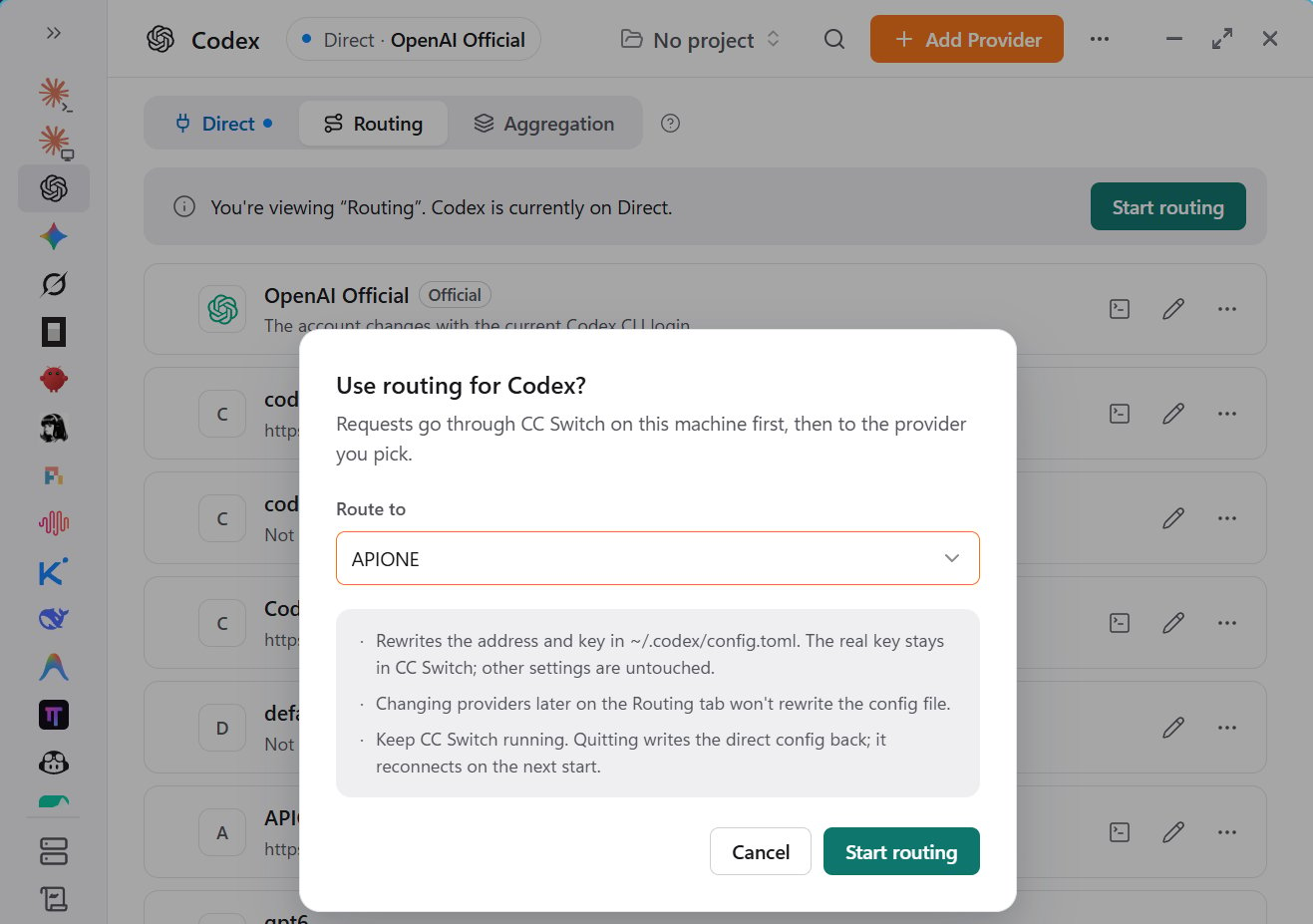
Choose APIONE as the destination in the Codex routing confirmation.
Map Claude Code models
Haiku, Sonnet, and Opus are client selection tiers. Map each tier to an APIONE model that supports Messages and tool calls. Do not reuse another provider’s prefixes or aliases without checking the actual model ID.Verify and switch back
Start a new session and send a short message. Confirm the request in APIONE. If the old configuration is still used, restart the tool and check whether shell variables override CC-Switch settings. To switch back, enable the previous provider in the list. When sharing configurations across applications, check each protocol, address, and model. Configure Proxy & Failover only when needed, and verify the proxy separately.Integration directory · Choose a model · Troubleshooting