

Install
Configure the connection
Set the key in the current terminal:~/.dsh/settings.yaml. If DSH_HOME is set, use settings.yaml in that directory. Merge:
Configure APIONE in the Web UI
Rundsh web, go to Settings → Models → DeepSeek → Edit, and expand Custom Settings.
- Enter your APIONE API Key in API Key.
- Enter
https://api.apione.ai/v1in API Address. - Check that the Model Catalog matches the actual model IDs currently available on APIONE.
- Click Save.
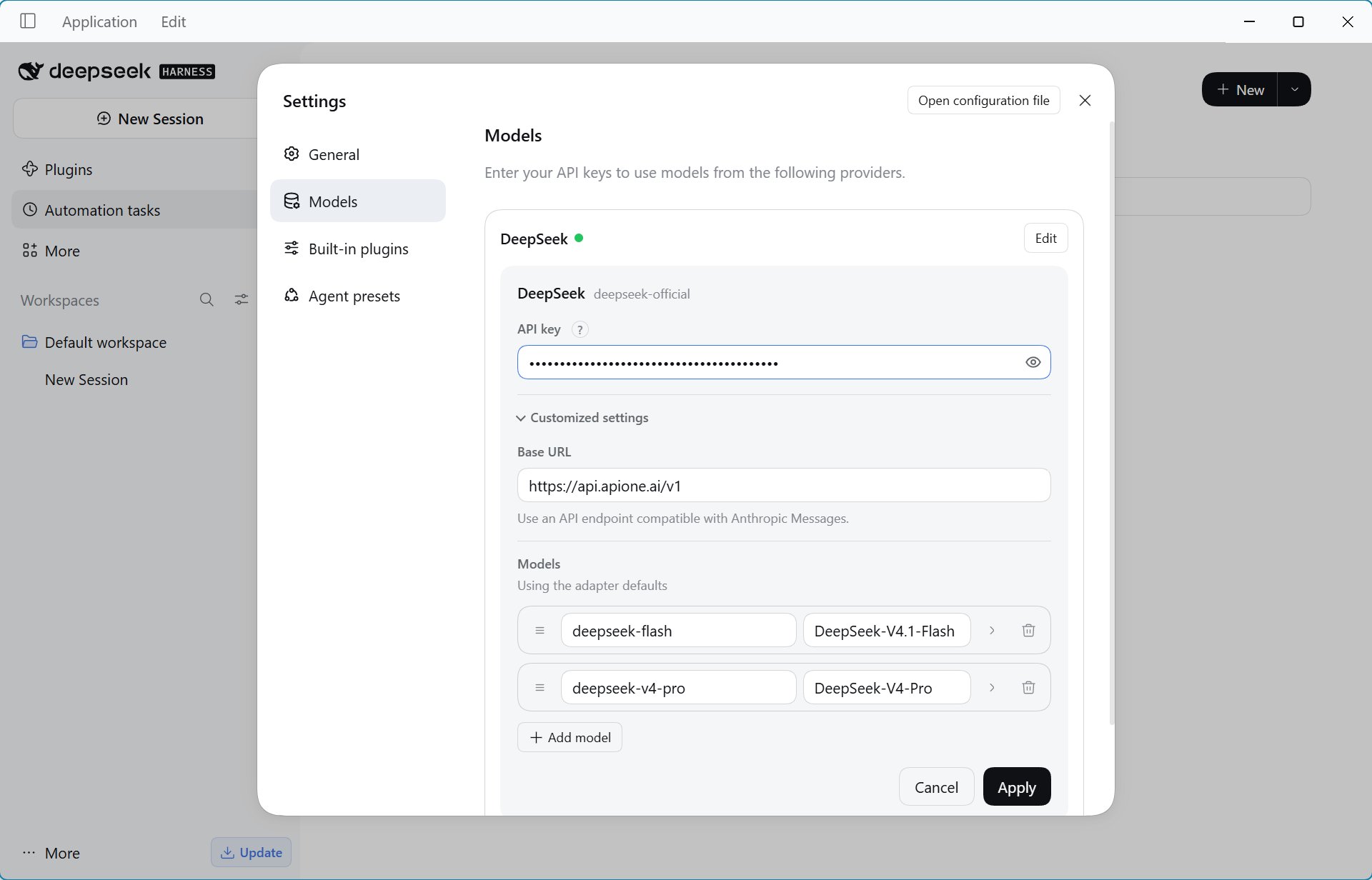
DeepSeek Harness API key, address, and model catalog configuration.
Select a model and run
Rundsh web and open model settings. Check whether built-in IDs match APIONE’s current catalog. If not, use the custom model configuration supported by your DSH version. Do not assume all built-in models are callable. Test text Q&A first, then verify file reading and tool result submission.
Network and authentication
If the web interface opens but inference fails, check whether the DSH process or container can reach api.apione.ai. For corporate proxies, see network configuration. Use an APIONE API Key. Other providers’ OAuth plugins, login commands, and authorization tokens do not apply. Renaming a plugin does not create an APIONE OAuth service.Integration directory · Choose a model · Troubleshooting