

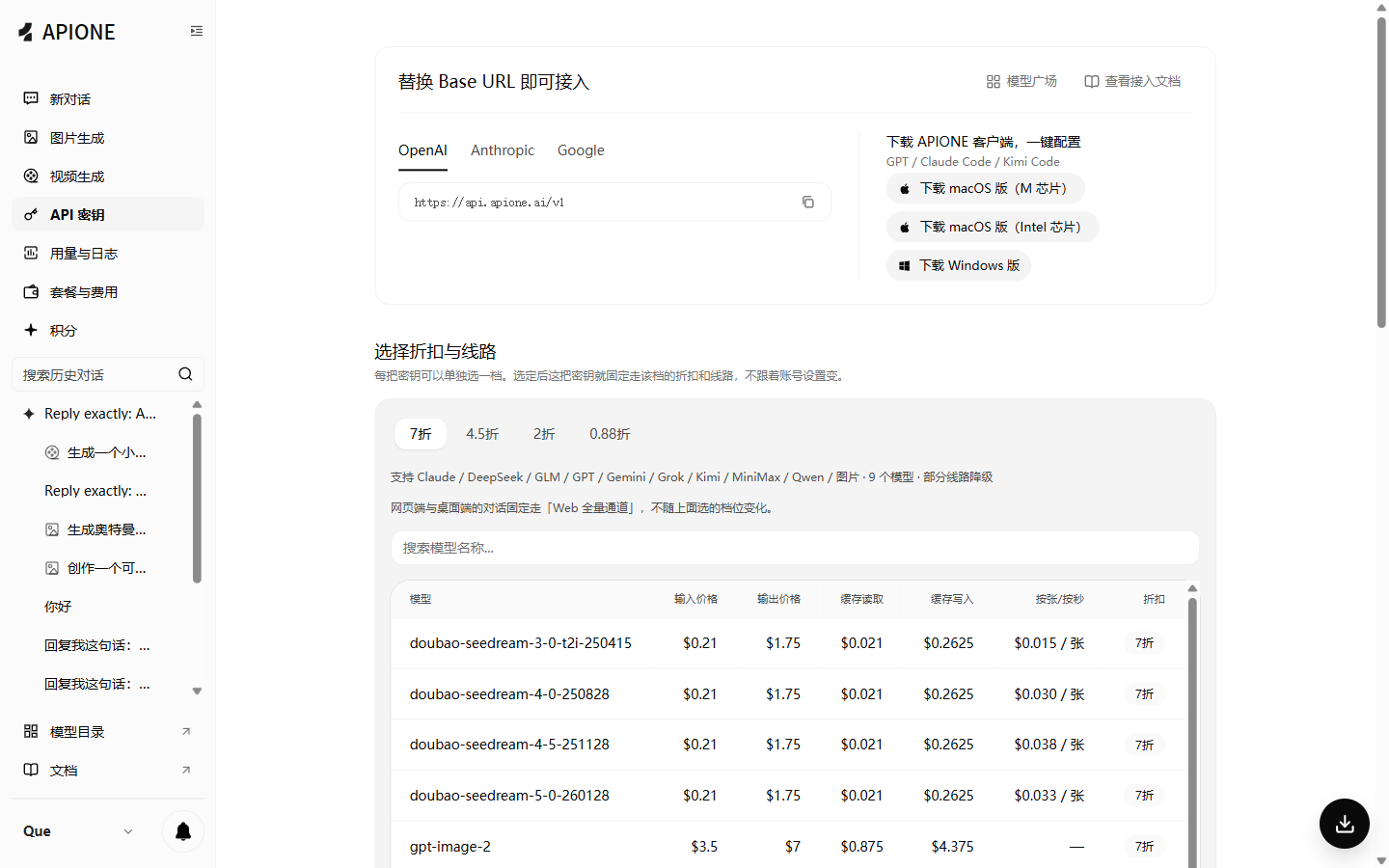
The APIONE API Key page shows the Base URL, protocol notes, model pricing, and client downloads.
Before you start
- Create an API Key in the APIONE console.
- Choose a model in the model directory and confirm that your key can access it.
- Copy the actual model ID. YOUR_APIONE_KEY and YOUR_APIONE_MODEL_ID in the guides are placeholders; replace them before use.
- Test a simple text conversation first, then test streaming, images, and tool calls one at a time.
Coding assistants and command-line tools

CC-Switch
Save APIONE configurations in a GUI and switch providers per tool.

Claude Code
Set an Anthropic-compatible address and use APIONE in the terminal and VS Code.

Claude Desktop
Configure the APIONE Anthropic Messages-compatible API.

Cline
Configure an OpenAI Compatible model provider in your editor.

Codex CLI and desktop
Configure APIONE through a custom Responses provider.

Cursor
Set a custom OpenAI address and verify your chat model.

DeepSeek Harness
Configure DSH with an API Key and a custom base URL.

Gemini CLI
Call APIONE models from the command line through the Gemini-compatible API.

GitHub Copilot
Configure APIONE through custom model endpoints in VS Code.

Hermes Agent
Configure Hermes Agent with a custom OpenAI-compatible endpoint.

Neovate Code
Add a custom provider to use APIONE in Neovate Code.

OpenCode
Connect to APIONE with an OpenAI-compatible provider.

Pi Coding Agent
Configure Pi with a custom provider and API Key.
Chat, notes, and workflows

Cherry Studio
Add an OpenAI-compatible service and chat with APIONE models on desktop.

Dify
Add models to your workspace and call APIONE from chatbots and workflows.

Obsidian Copilot
Configure APIONE chat models in your notes workspace.

Open WebUI
Add APIONE models through the administrator connection settings.

RikkaHub
Add APIONE as a provider in the Android chat client.

Sider
Use APIONE in Sider versions that support a custom API.
Agent deployment and shared configuration

OpenClaw
Add APIONE as a custom OpenClaw model provider.

Alibaba Cloud OpenClaw
Verify the model connection on the server first, then connect the gateway and messaging channels.
Network environments
Troubleshoot connections on local machines, proxies, containers, and remote services.
OAuth PKCE
Learn how APIONE authentication works today and where OAuth integration stops.
Endpoint reference
If the client appends the API version automatically, enter the root URL. For example, Gemini CLI’s GOOGLE_GEMINI_BASE_URL uses
https://api.apione.ai. The API version should appear only once in the final request path. Follow each guide for the exact values.
Generic OpenAI-compatible setup
- Open the model provider settings, choose a custom OpenAI-compatible provider, and name it APIONE.
- Enter your APIONE API Key and use
https://api.apione.ai/v1as the Base URL. - If a complete endpoint is required, enter
https://api.apione.ai/v1/chat/completions. - If Host and Path are separate fields, enter
https://api.apione.aiand/v1/chat/completions. - Add the actual model ID, save, and start a new conversation to test.
Loomy
- Open Settings → Models → Provider configuration and click Add provider.
- Set the provider ID to
apione, the display name to APIONE, the SDK mode to OpenAI Compatible, and the Base URL tohttps://api.apione.ai/v1. - Click Next, enter your APIONE API Key, click Fetch from API, select a model, then save and apply.
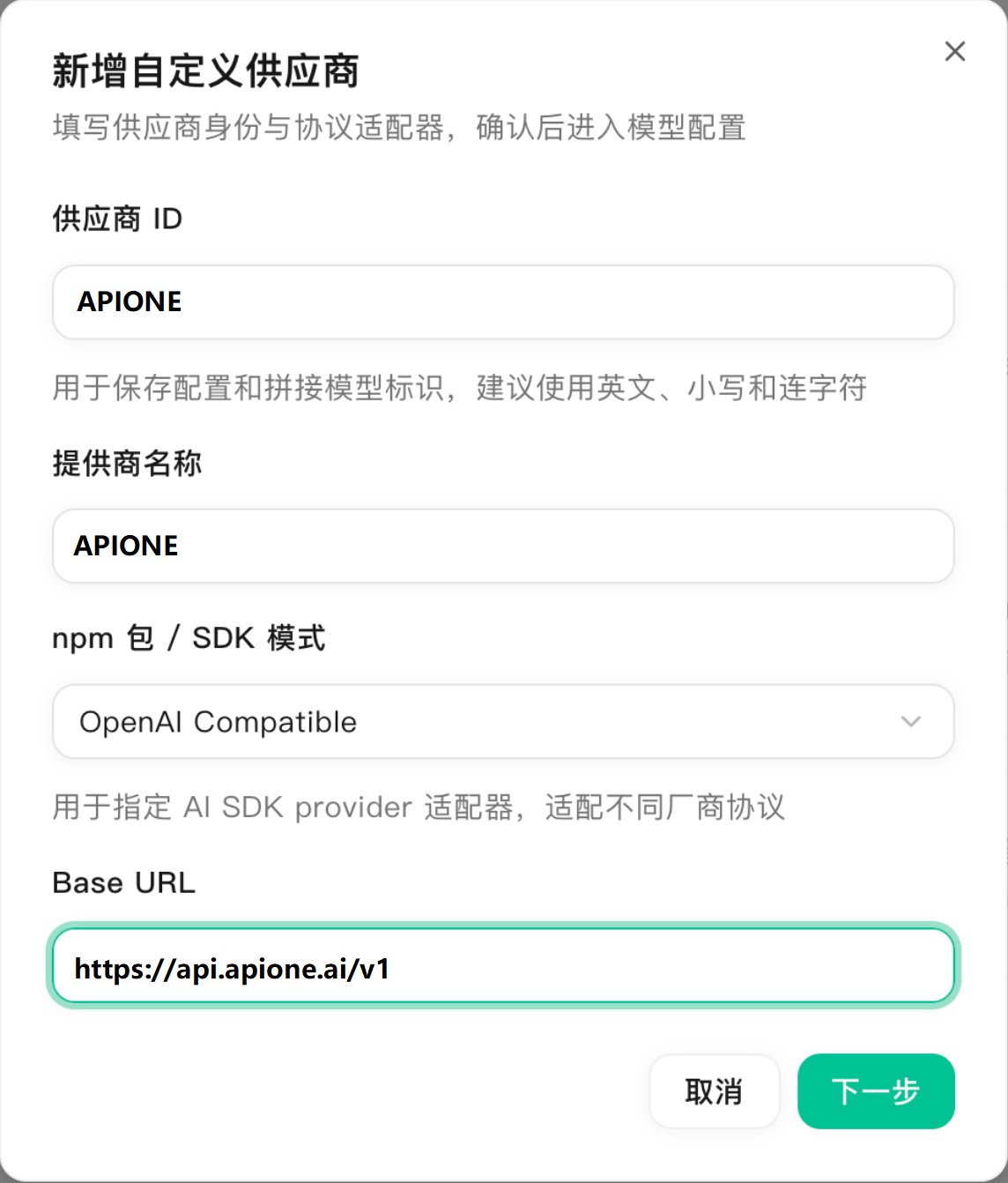
Example of adding APIONE as a custom provider in Loomy.
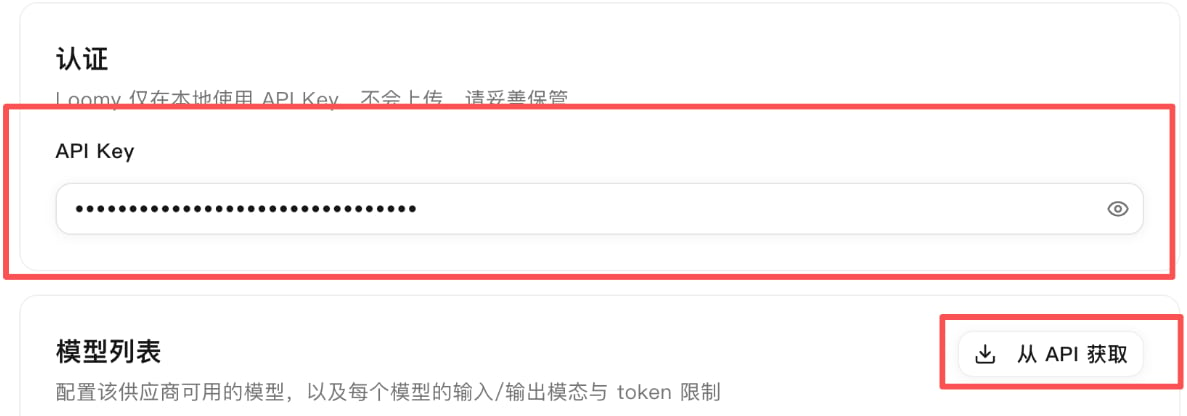
The Loomy API Key field and the fetch models button.
Zed
- Open AI settings → LLM Providers and click Add Provider.
- Add an OpenAI-compatible provider for Zed’s built-in Agent. Set the provider name to APIONE, the API URL to
https://api.apione.ai/v1, and the API Key to your APIONE key. - Add an available model ID. After saving, select the model in Zed Agent and send a test message.

The LLM Providers section and Add Provider button in Zed.
Kilo Code
- Open the extension’s Settings → Providers → Custom provider.
- Set the Provider ID to
apioneand the Display name to APIONE. For Chat Completions models, set Provider API to OpenAI Compatible, the Base URL tohttps://api.apione.ai/v1, and the API Key to your APIONE key. - Fetch or manually add an available model, save, then select it in chat and send a test message.
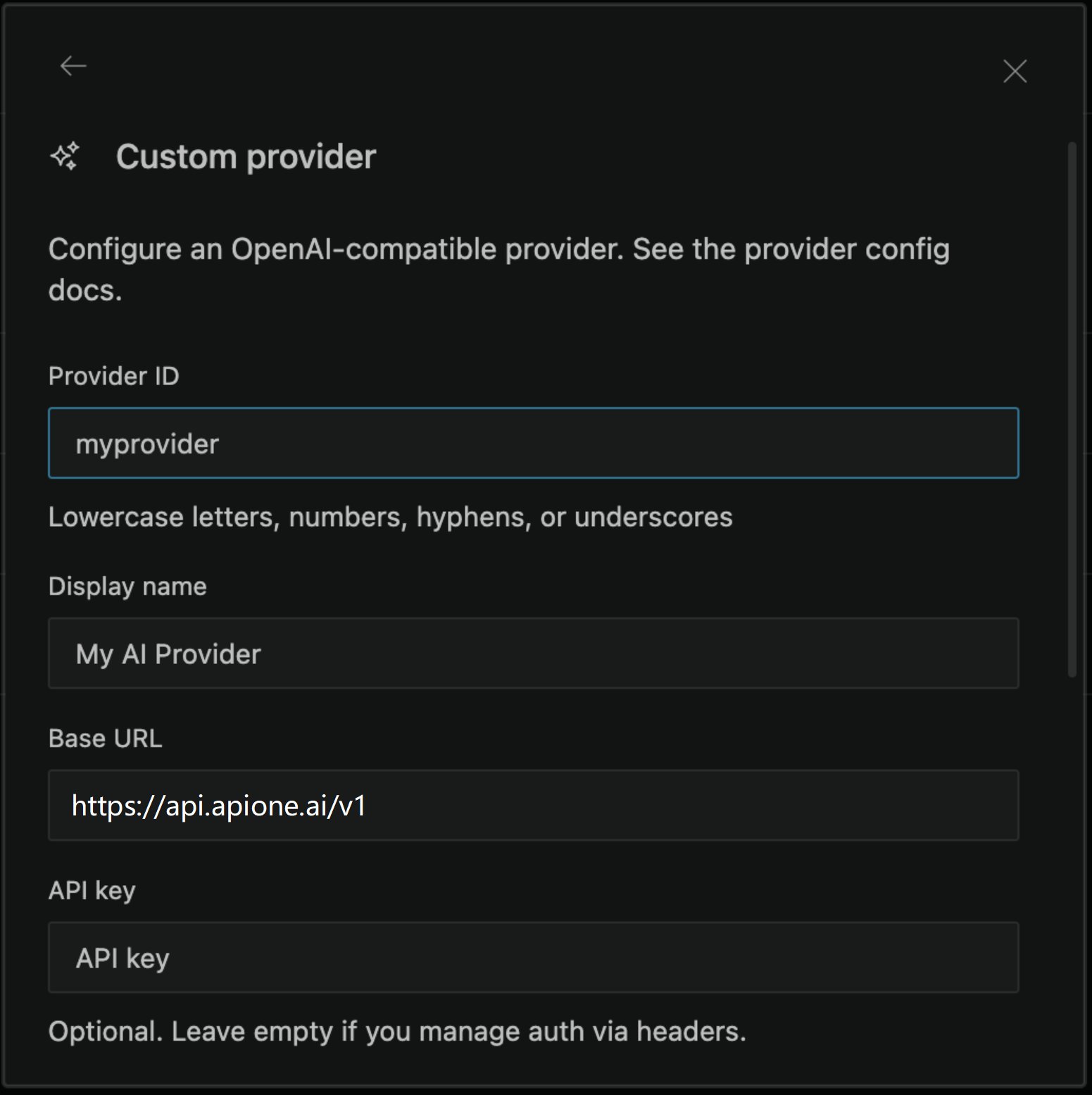
Example of a custom provider configuration in Kilo Code.
LobeHub
- In Settings → AI providers, create a custom provider. Set the identifier to
apioneand the provider name to APIONE. - Set the request format to OpenAI and the proxy URL to
https://api.apione.ai/v1, enter your APIONE API Key, and click Create. - Add an available model ID, select it in chat, and send a test message.
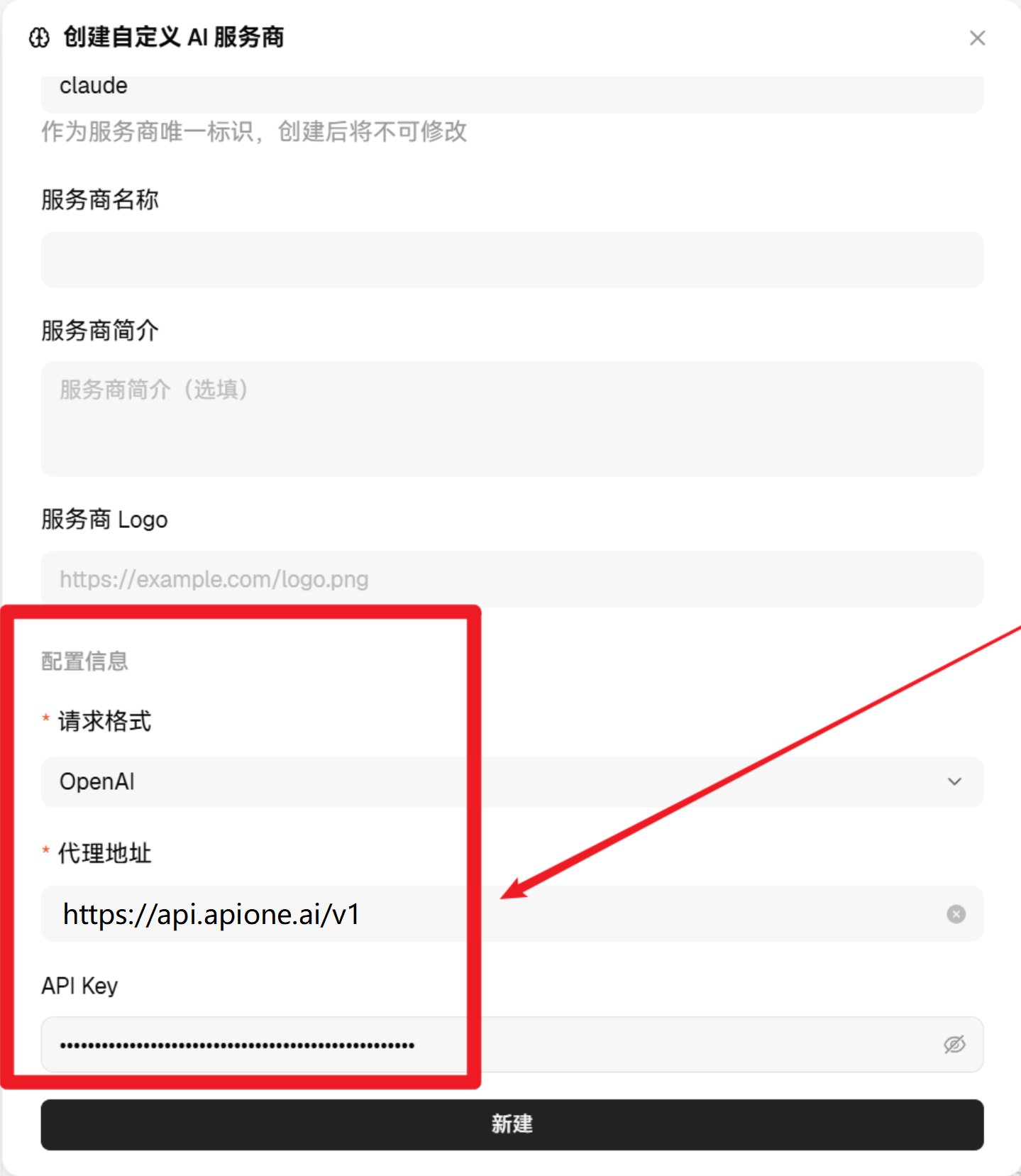
Example of a custom provider configuration in LobeHub. The provider identifier can be apione.
ExtraBrain
- Open Settings → AI Providers → Custom Provider.
- Enter your APIONE API Key and the Base URL
https://api.apione.ai/v1. Set Model Name to an actual model ID from the APIONE model directory. - Click Validate to check the configuration. Once it passes, set it as the primary or backup provider if needed.
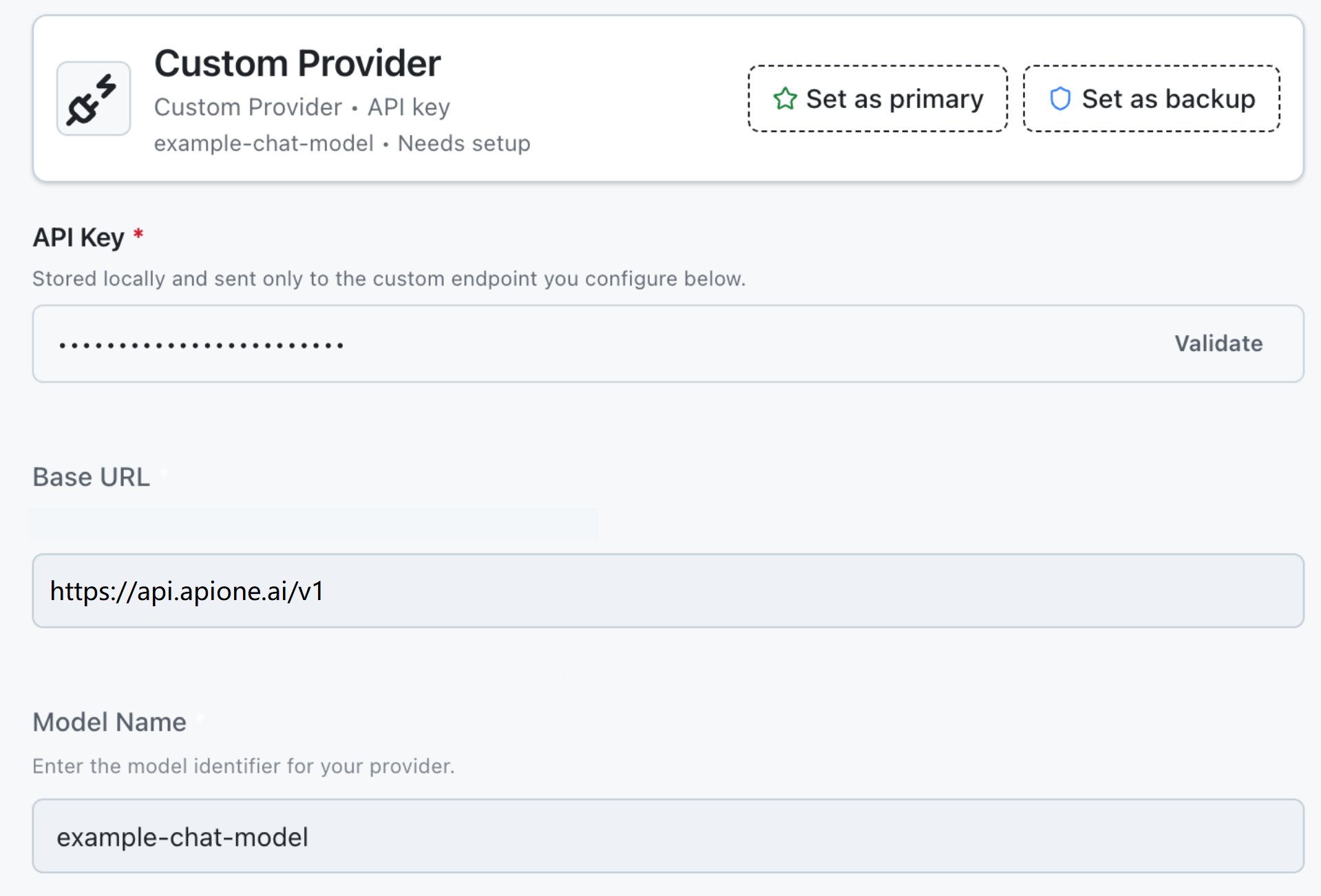
Example of a custom provider configuration in ExtraBrain. Replace the placeholder model name with an actual model ID.