

1. Create an API key
Create a key on the API Keys page, select an available group and model permissions, and save the full key. These commands work in macOS, Linux, or another Bash environment.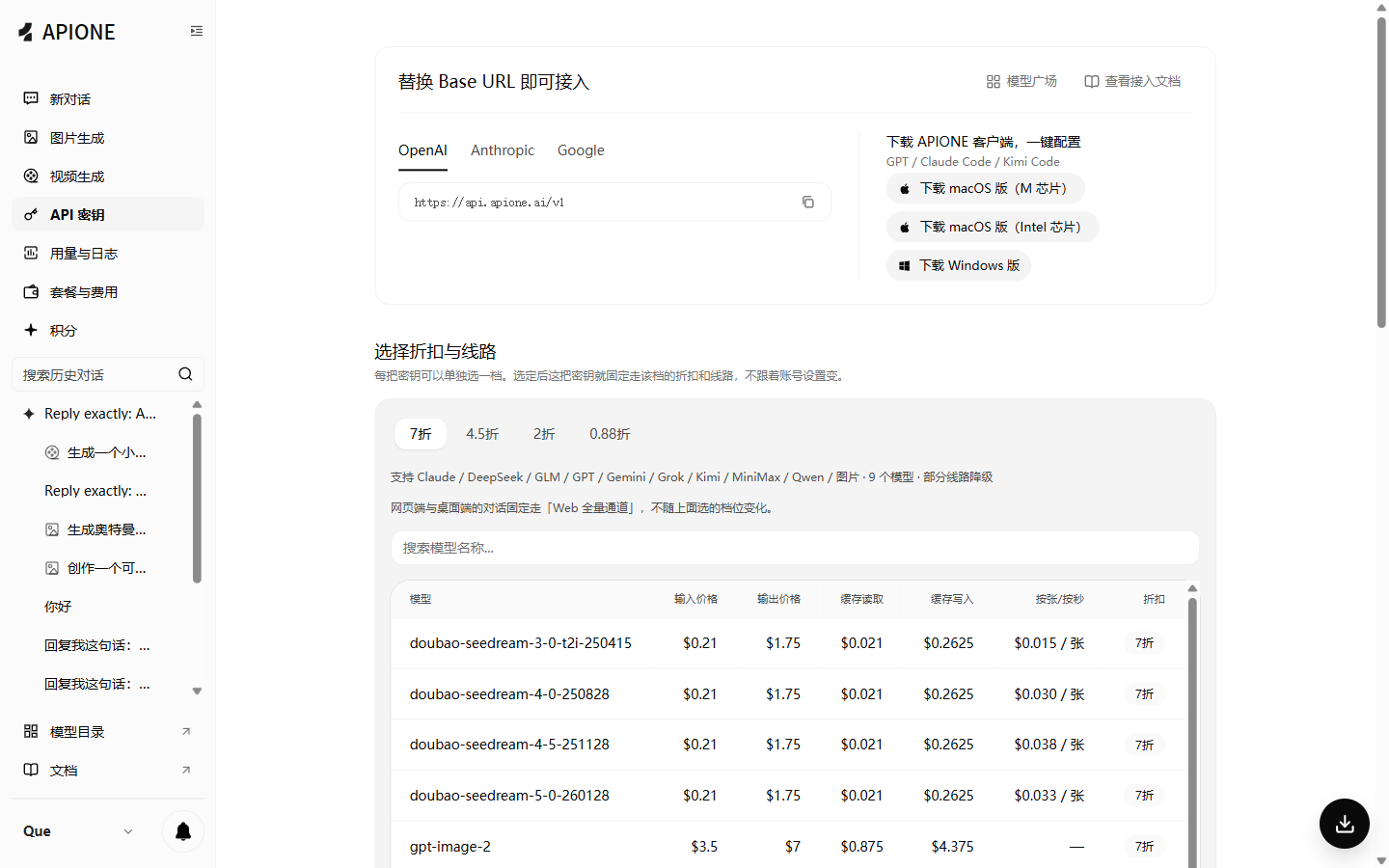
APIONE API Keys overview
YOUR_APIONE_KEY with your key and keep it in your own terminal or server environment.
2. List and select a model
data[].id for a model that supports Chat Completions. Check protocols and parameters in the model directory.
YOUR_APIONE_MODEL_ID with the actual case-sensitive ID. If a model is missing from your key’s list, check the key’s permissions and group.
3. Send the first request
Windows PowerShell quick check
Windows users can run the steps below in PowerShell. First confirm available balance in the APIONE console, then create a key.4. Check the response and usage
Read the reply fromchoices[0].message.content and token usage from usage. This example shows only part of the response; text and numbers depend on the actual request:
Next: Python and Node.js, streaming, and troubleshooting.